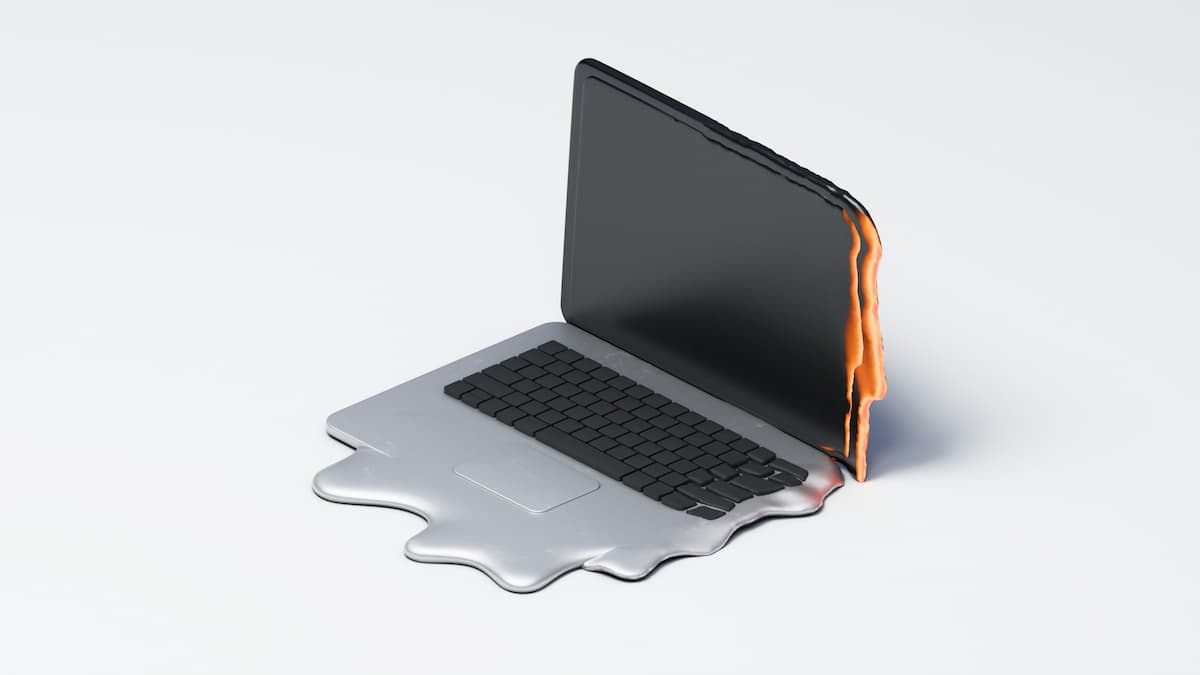
barqal — High laptop temperatures can occur because the CPU or GPU is under heavy load, which is normal during gaming, video rendering, or installing updates. However, if the fan stays at maximum speed while idle, performance drops suddenly, or the device shuts down, there’s a cause that needs diagnosing.
The problem isn’t just “heat.” Heat is the result of a balance between power consumption, heat generation, and the cooling system’s ability to dissipate it. If vents are blocked or CPU load is high, temperatures rise, the fan speeds up, and eventually, the CPU throttles its clock speed to protect itself. This is called Thermal Throttling, and it can cause game stuttering and program lag. [1]
The Short Answer: Why does it overheat?
Laptops usually overheat due to one or more of the following:
- Running a CPU or GPU-intensive program for extended periods.
- Blocked vents due to dust or placing the device on a bed or blanket.
- High room temperature or direct sunlight.
- A weak, stopped, or grinding fan.
- Dried thermal paste, especially in older devices.
- Too many background apps or startup programs.
- Windows updates, file syncing, or antivirus scans.
- Using the dedicated GPU instead of the integrated one for simple tasks.
- A non-original charger or a damaged battery.
The correct solution isn’t immediately buying a cooling pad. Start by measuring load and temperature, check ventilation and software, then move to internal maintenance. (To take care of your device generally, read our guide on routine laptop maintenance)
1. Dust isn’t just on the vents, but inside the heatsink
Many users focus on visible dust, but the bigger issue is often a dense layer of lint on the heatsink fins inside. This prevents air from passing through, so the fan spins fast without transferring heat efficiently. Key indicator: A loud fan with little air coming out of the vents means internal blockage. Fix: Clean the vents with compressed air after turning off the device. If the problem persists, it needs internal cleaning by a technician.
2. Placing the laptop on a surface that chokes air intake
Beds, blankets, and pillows block the intake vents on the bottom. The fan doesn’t get cool air. Fix: Place the device on a hard, flat surface. Use a stand that leaves a clear air path.
3. Room temperature and sunlight
The hotter the air entering the device, the less thermal difference available for cooling. Don’t leave the laptop in a hot car or near direct sunlight.
4. A single background program using the CPU
The issue might be an app you don’t see (a browser, sync tool, antivirus scan, or a meeting app that didn’t close the camera).
Fix: Open Task Manager (Ctrl + Shift + Esc), sort by CPU, and close what you don’t need. (If your device is generally slow, read our article on speeding up your laptop)
5. Startup programs raise heat from the start
Some apps run with Windows even if you never use them. Fix: Go to Settings > Apps > Startup and disable unnecessary apps.
6. System updates and file syncing
After a major update, the system may work in the background downloading updates and indexing files. Let it finish, then restart.
7. High power and performance mode
High performance mode allows the CPU to stay at higher frequencies, increasing heat. Fix: Use Balanced mode for browsing and High Performance only for gaming or rendering.
8. Charging generates heat
Charging converts some energy into heat, especially if you game while charging. Always use the original charger.
9. Swollen battery: a dangerous cause
If the trackpad is rising or the bottom cover is separating, the battery might be swollen. Turn off the device immediately, unplug it, and do not press on it. (To learn more about battery protection, read our article on laptop battery care)
10. The fan runs but doesn’t cool
Blades might be damaged, or the bearing dry. Sound matters: grinding means mechanical damage. Silence with high heat means the fan is stopped.
11. Dried thermal paste
Thermal paste fills microscopic gaps between the chip and heatsink. Over time, it dries out. If the device is old, dust-free, and still overheats, it may need a paste replacement by a technician.
12. Dedicated GPU running unnecessarily
Monitor the Performance tab in Task Manager. If a simple task constantly uses the dedicated GPU, review graphics settings.
13. Malware or crypto-miners
Malware can run in the background using resources. Run a full scan with Windows Security.
14. BIOS or driver updates
Manufacturers might adjust fan curves via BIOS. Install updates only from the official manufacturer’s website.
Step-by-Step Diagnosis
- Log symptoms: Is it overheating at idle or under load? Is there a smell?
- Check load: Use Task Manager to see what’s using the CPU.
- Compare idle vs. load: High idle temps mean a background app or cooling issue.
- Check airflow: Is air coming out of the vents? Are they blocked?
- Use manufacturer diagnostics: Many laptops have a fan test in the BIOS.
Practical Solutions (Easiest to Deepest)
- Turn off and let it cool: Never put it in the fridge (moisture damages circuits).
- Change the usage surface: Use a hard desk.
- Clean the vents externally: With compressed air.
- Close unnecessary apps.
- Reduce startup apps.
- Choose Balanced power mode.
- Update Windows and drivers.
- Lower in-game graphics settings.
- Use a cooling pad: Only as an aid, not a substitute for cleaning.
- Request internal maintenance: To clean the heatsink and replace thermal paste.
When to Visit a Technician
- High idle temps persist after closing apps.
- The device restarts under load.
- The fan doesn’t spin or makes a grinding noise.
- A swollen battery is present.
- There is a burning smell.
FAQs
Why does it overheat even when I don’t run programs? There might be a background process, startup app, or update running.
Is 90°C dangerous? You can’t judge by the number alone. Some CPUs approach their limits under load and throttle automatically. Monitor for symptoms (sudden shutdowns, stuttering).
Is a cooling pad useful? It may help if it raises the device and improves airflow, but it won’t fix a broken fan.
Should I change thermal paste every year? Not necessarily. Change it if symptoms persist after checking ventilation.
Conclusion
Laptop overheating isn’t a single problem. The best approach is progressive diagnosis: monitor resource-heavy processes, improve the usage surface, clean the vents, and move to internal maintenance when needed. The goal isn’t to make it completely cold, but to keep it running within safe limits.
References
- What Is Throttling and How Can It Be Resolved — Intel
- Fan Behavior and Fan Noise in a Surface Device — Microsoft Support
- How to Stop Computer and Laptop Overheating and Shut Down Issues — Dell Support
- Information about Temperature for Intel Processors — Intel
- HP Notebook PCs: Reduce Heat Inside the Laptop to Prevent Overheating — HP Support
- Troubleshooting CPU Performance and Temperature Issues — AMD Support