💾 Full C: Drive on Your Laptop? 15 Ways to Free Up Space Without Deleting Your Important Files
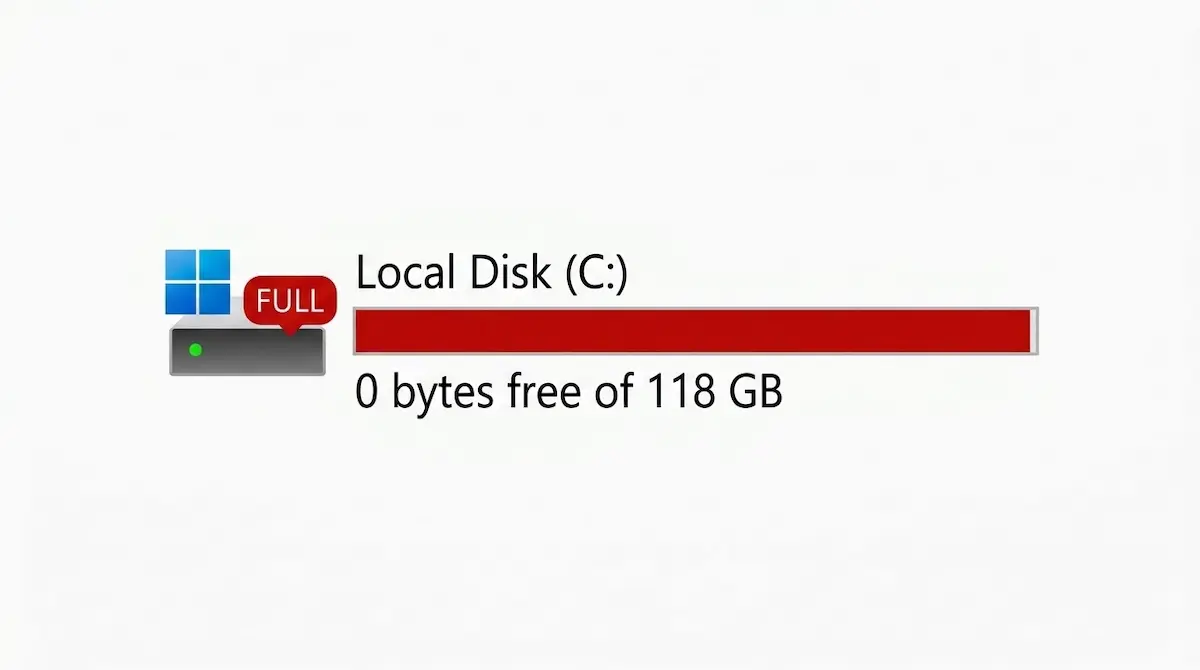
Seeing the Low Disk Space message or the C: drive bar turning red means your free storage is running out. This doesn’t mean you have to immediately delete your photos and documents; there is often hidden space in temporary files, the Recycle Bin, previous Windows installations, locally available OneDrive files, and unused games or programs. (To learn how this affects your device’s speed, read our guide on Why Is My Laptop Slow?).
⚠️ Before You Begin: Do not randomly delete your personal files, and never manually delete the
Windows,WinSxS, orProgram Filesfolders. Inspect files first, and move what you want to keep to another drive or backup before deleting.
🔍 What Can Be Safely Deleted? (And What to Avoid?)
| ✅ Usually Safe to Clean After Review | ❌ Never Delete Manually |
|---|---|
| Temporary files suggested by Windows. | The C:\Windows folder. |
| Recycle Bin contents after verification. | The C:\Windows\WinSxS folder. |
| Old Windows Update files via official tools. | Program Files and Program Files (x86). |
The Windows.old folder after the rollback period. |
The pagefile.sys file without understanding it. |
| Programs and games you don’t use. | Files inside AppData you don’t recognize. |
| OneDrive files after converting them to Online-only. | Any file whose function you don’t know just because it’s large. |
🛠️ 15 Ways to Free Up C: Drive Space (Easiest to Hardest)
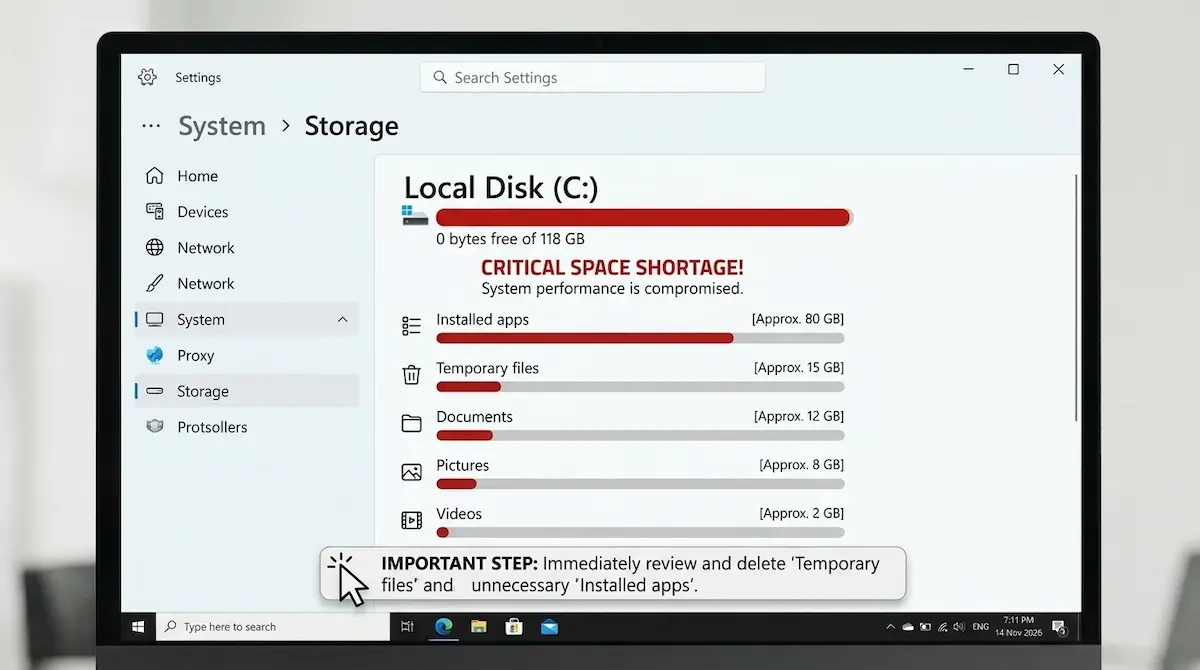
1️⃣ Discover What is Consuming Space First
Don’t start deleting before knowing which category is taking up the drive.
- Open Settings > System > Storage.
- Open large categories like Apps and Temporary files.
- Sort large files in the
DownloadsandVideosfolders by size.
2️⃣ Use Cleanup Recommendations
Windows offers a feature to analyze space and suggest items to delete.
- Go to:
Settings > System > Storage > Cleanup recommendations. - Review the categories (temporary files, large files, unused apps) and click Clean up.
3️⃣ Enable Storage Sense
Automatically cleans up unnecessary files.
- Go to:
Settings > System > Storage > Storage Sense > On. - ⚠️ Warning: Do not let it automatically delete
Downloadsunless you are sure, as it might contain important documents. [3]
4️⃣ Delete Temporary Files Manually
- Go to:
Settings > System > Storage > Temporary files. - Review the list (system files, cache, Recycle Bin).
- Do not check
DownloadsorPrevious Windows installation(s)without understanding the result.
5️⃣ Use Disk Cleanup with System Files
An older but effective tool that reveals hidden files.
- Search the Start menu for
Disk Cleanup. - Select the C drive and click Clean up system files.
- Select what you want to delete and click OK. [1] [4]
6️⃣ Delete the Windows.old Folder After the Rollback Period
Contains a copy of your old system and takes up huge space.
- Delete it via:
Settings > System > Storage > Temporary files. - Check Previous Windows installation(s) and click Remove.
- 🚨 Warning: After deleting it, you won’t be able to roll back to the previous version of Windows. [3]
7️⃣ Review the Recycle Bin
Deleted files still take up space until the bin is emptied.
- Open the Recycle Bin, sort files by size.
- Restore what you need, then click Empty Recycle Bin.
8️⃣ Clean the Downloads Folder Carefully
It’s full of installation files (.exe, .msi), compressed files (.zip), and duplicate images.
- Review files, move important ones to an external drive, and delete the rest.
9️⃣ Move Pictures, Videos, and Documents to Another Drive
If you have a D: drive or external hard drive.
- Copy the files first (don’t use Cut), and ensure they are safe.
- After verifying, delete the old copy from C:.
- You can change the default save location via:
Settings > System > Storage > Advanced storage settings > Where new content is saved.
🔟 Use OneDrive Files On-Demand
If your files are in the cloud, you can remove them from the device without deleting them from the cloud.
- Open the OneDrive folder, right-click the file/folder.
- Select Free up space.
- 💡 Note: Do not press Delete, as that will delete them from the cloud too. [5]
1️⃣1️⃣ Uninstall Unused Programs and Games
- Go to:
Settings > Apps > Installed apps. - Sort by Size, and uninstall what you don’t need.
1️⃣2️⃣ Move Large Game Libraries
If you use Steam, Epic, or Xbox, use the Move option inside the game launcher itself to move games to another drive. Do not move folders manually.
1️⃣3️⃣ Disable Hibernate If You Don’t Use It
The hibernation file (hiberfil.sys) can take up significant space.
- Open Command Prompt as Administrator.
- Type:
powercfg /hibernate off. - To restore it:
powercfg /hibernate on. [6] - ⚠️ Warning: You will temporarily lose the Hibernate and Fast Startup features.
1️⃣4️⃣ Clean Windows Components Using the Official Method (DISM)
If you are advanced and want to clean the WinSxS folder, do not delete it manually.
- Open CMD as Administrator and type:
Dism.exe /online /Cleanup-Image /StartComponentCleanup
- You can add
/ResetBaseat the end to reduce size further, but you won’t be able to uninstall old updates. [7]
1️⃣5️⃣ Scan for Malware
If space fills up again quickly, there might be a virus or a mining program.
- Go to:
Windows Security > Virus & threat protectionand run a full scan.
🚑 Quick Rescue Plan (If the Device Barely Works)
- Save your work and restart the laptop.
- Move the largest video or ISO file to a USB drive.
- Empty the Recycle Bin.
- Delete temporary files from
Settings > Storage. - Uninstall a large game or program.
- Restart and check the space.
🚫 Files You Should Never Delete Manually (Danger Zone)
| Folder/File | Why shouldn’t you delete it? |
|---|---|
| WinSxS | Contains system components and updates. Deleting it corrupts the boot. Use DISM only. [7] |
| Windows | System operating files and drivers. |
| Program Files | Manually deleting a program leaves traces in the Registry. Use Settings. |
| AppData | Contains app settings and your data. |
| Pagefile.sys | Virtual memory. Let Windows manage it. |
🛡️ How to Prevent the Drive from Filling Up in the Future?
- 📅 Monitor space monthly: Don’t wait until the bar turns red.
- 📂 Keep downloads temporary: Delete installation files after use.
- 🎮 Monitor games and videos: Store them on an external drive or cloud.
- ⚙️ Adjust Storage Sense: To clean temporary files automatically (with caution regarding the Downloads folder).
❌ Common Mistakes When Cleaning the C: Drive
- Deleting Windows.old too early: You might need it to roll back if the new system fails.
- Deleting OneDrive files: Use Free up space and do not press Delete.
- Downloading “Registry Cleaner” programs: Unnecessary and might harm the system.
- Manually deleting Temp files: Some are in use; use official tools.
- Pressing Reset this PC as a first solution: It might delete your files. Try safe cleaning first.
❓ FAQ
❓ Does a full C: drive slow down the laptop?
Yes, low space can lead to system slowness and update failures. But if slowness persists after cleaning, check other causes of laptop slowness.
❓ Is it safe to delete temporary files?
Yes, those suggested by Windows under Temporary files or Disk Cleanup are safe, but review the list and don’t check Downloads without awareness.
❓ Does disabling Hibernate increase space?
Yes, it frees up hiberfil.sys space, but you will lose the Hibernate feature and Fast Startup.
❓ Why does the C: drive fill up again after cleaning?
It could be an app (like a browser or OneDrive) re-downloading files, pending updates, or malware. Monitor Storage to see which category is growing.
❓ Do I need external programs to clean the drive?
Usually not. Built-in Windows tools (Storage Sense, Disk Cleanup, OneDrive) are very sufficient and safe.
🎯 Conclusion
If the C: drive is full, start with Storage settings to find the source of consumption, then use Cleanup recommendations and Disk Cleanup. Review Downloads and the Recycle Bin, and move large files to another drive or use the OneDrive Files On-Demand feature. The goal isn’t to delete as many files as possible, but to safely free up space while preserving your data and system.
📚 References
- Free up drive space in Windows — Microsoft Support
- Storage settings in Windows — Microsoft Support
- Manage drive space with Storage Sense — Microsoft Support
- Tips to improve PC performance in Windows — Microsoft Support
- Save disk space with OneDrive Files On-Demand for Windows — Microsoft Support
- Powercfg command-line options — Microsoft Learn
- Clean Up the WinSxS Folder — Microsoft Learn
- Free up space for Windows updates — Microsoft Support