
🐢 Why Is My Laptop Slow? 21 Hidden Causes and Practical Solutions to Restore Speed
A laptop might suddenly become slow, or its performance might gradually decline over months and years. Sometimes the cause is a background application, and sometimes it’s a full disk, high temperatures, or degraded storage. Therefore, there is no single solution that works for every device, and a slow laptop doesn’t necessarily mean it’s reached the end of its lifespan.
Microsoft explains that Windows slowness can result from low storage space, too many startup applications, outdated programs, or hardware that no longer meets the requirements of modern software. [1] In this guide, we will add less obvious factors to these causes, such as thermal throttling, cloud syncing, unstable drivers, and corrupted system files. (To learn how to maintain your device’s overall health, you can read our guide on Routine Laptop Maintenance).
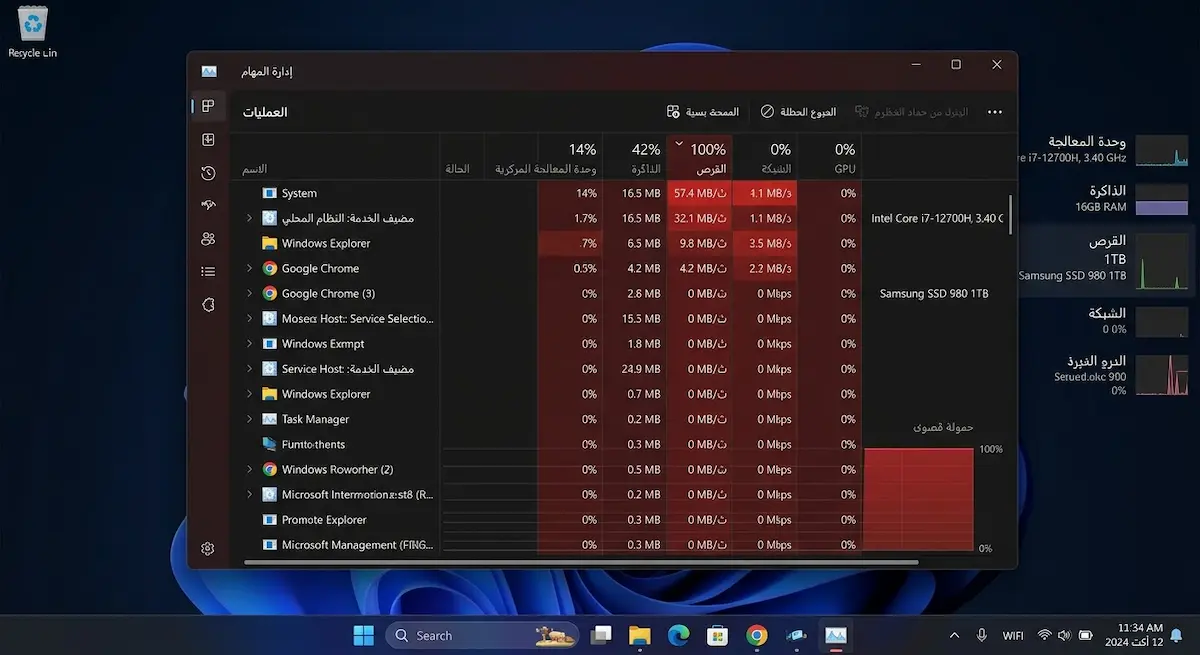
💡 Quick Summary: Open Task Manager first, and determine whether the bottleneck is in the CPU, RAM, Disk, or GPU. Do not delete files or install random cleaner programs before identifying the root cause.
🩺 How to Identify the Type of Slowness (Symptom Guide)
Before applying solutions, observe when the slowness occurs to identify the likely cause:
| Symptom | Probable Cause | Where to look? |
|---|---|---|
| 🐌 Slow startup | Startup apps, pending updates, slow disk (HDD). | Task Manager > Startup |
| 📂 Slow app opening | Low RAM, full disk, degraded storage. | Task Manager > Performance |
| 🎮 Stuttering during games | High temperatures (Thermal Throttling), weak GPU, graphics driver. | Temperature monitoring (HWMonitor) |
| ⏳ Slowness after minutes of use | Thermal throttling, Memory Leak, resource-heavy app. | Task Manager > Processes |
| ⚠️ Random freezes/clicking sounds | Disk issue (HDD/SSD), RAM, or power. | Disk check (CrystalDiskInfo) |
| 🌐 Internet slowness only | Network, browser, or extensions issue. | Network settings |
🛠️ 21 Causes of Laptop Slowness with Solutions
1️⃣ Too Many Startup Programs
Some apps start automatically with Windows, like meeting apps and cloud storage, consuming resources right from login.
- Solution: Open Task Manager > Startup apps, and disable unnecessary apps. [2]
2️⃣ Full System Drive (C:)
When the Windows drive is full, there is less space for temporary files and updates.
- Solution: Open
Settings > System > Storage. Use Storage Sense and check the Downloads folder. [3]
3️⃣ Background Applications
An app might continue syncing or scanning even when you aren’t using it.
- Solution: Check the highest resource-consuming apps in Task Manager. Adjust background permissions from
Settings > Apps > Installed apps > Advanced optionsand select Never for unnecessary apps. [1]
4️⃣ Too Many Browser Tabs
Dozens of tabs consume significant RAM, especially video pages and web apps.
- Solution: Close unused tabs, and use the browser’s task manager to find the most resource-heavy tab.
5️⃣ Heavy Browser Extensions
Some extensions run on every page, causing lag.
- Solution: Temporarily disable extensions, then enable them one by one to find the culprit. Delete unnecessary ones.
6️⃣ Malware or Hidden Cryptomining
Consumes device resources silently, causing slowness and high heat.
- Solution: Open Windows Security > Virus & threat protection and run a quick scan, then a deep scan. [1]
7️⃣ High CPU Temperatures (Thermal Throttling)
The CPU lowers its clock speed to protect itself, causing stuttering.
- Solution: Use the laptop on a hard surface, do not block vents, and clean the dust. Monitor temperatures during heavy tasks. [5]
8️⃣ Dust or Fan Failure
Dust buildup prevents heat dissipation.
- Solution: Check airflow. Take the device to a technician for cleaning if you are not comfortable opening it.
9️⃣ Low RAM
When memory is full, Windows uses the disk as virtual memory (much slower).
- Solution: Close heavy apps. Consider upgrading RAM if the device allows. Do not install fake “RAM booster” software.
🔟 Old Mechanical HDD
Much slower than Solid State Drives (SSDs).
- Solution: Replacing an HDD with an SSD is one of the best upgrades to speed up boot and app opening.
1️⃣1️⃣ Degraded or Full SSD
An SSD might slow down when free space is low or cells degrade.
- Solution: Keep free space available, and check disk health using the manufacturer’s tool.
1️⃣2️⃣ Corrupted Windows Files
Power outages or failed updates can corrupt system files.
- Solution: Run Command Prompt as Administrator and execute the repair commands (see Commands section below). [6]
1️⃣3️⃣ Windows Updates in the Background
Downloading updates temporarily consumes disk and network.
- Solution: Check Windows Update and let updates finish, then restart.
1️⃣4️⃣ Improper Drivers
Unstable graphics or network drivers cause freezes.
- Solution: Update drivers from Windows Update or the manufacturer’s website. Avoid unknown driver-pack sites. [7]
1️⃣5️⃣ Battery Saver Mode
Lowers CPU performance to save battery.
- Solution: Open
Settings > System > Power & battery. Select Best performance when plugged in. [4]
1️⃣6️⃣ Heavy Tasks on Battery
Performance drops when unplugged due to power-saving settings.
- Solution: Compare performance on charger vs. battery, and monitor temperatures.
1️⃣7️⃣ Cloud Syncing (OneDrive/Google Drive)
Uploading large files consumes resources.
- Solution: Pause syncing temporarily while working, or use the Files On-Demand feature in OneDrive. [3]
1️⃣8️⃣ Search Indexing
After moving many files, the system indexes them.
- Solution: Wait for indexing to finish if the activity is temporary, and do not delete the index randomly.
1️⃣9️⃣ Manufacturer Bloatware
Trial software and support tools can consume resources.
- Solution: Open
Settings > Apps > Installed apps. Uninstall programs you know and don’t use.
2️⃣0️⃣ Windows Visual Effects
Transparency and animations can slow down older devices.
- Solution: Search Start for
Adjust the appearance and performance of Windowsand select Adjust for best performance.
2️⃣1️⃣ Old Device with Insufficient Specs
Modern apps have become heavier than older devices can handle.
- Solution: Upgrade (SSD or RAM) or replace the device if the CPU is too weak. [1]
🚑 Additional Overlooked Causes
- Running a Virtual Machine or Android emulator in the background.
- Running a backup program during work hours.
- Connecting an external high-res (4K) monitor stressing the GPU.
- Screen recording or streaming software (OBS) running unnoticed.
- Charger issue forcing the device into power protection mode.
- Conflict between two installed Antivirus programs.
⏱️ Quick 15-Minute Diagnostic Plan
| Time | Step | Details |
|---|---|---|
| 1-3 min | 🔄 Restart | Save your work and select Restart. Don’t rely on Sleep for weeks. |
| 4-6 min | 📊 Monitor Task Manager | Open Ctrl + Shift + Esc and monitor CPU, Memory, Disk, GPU. |
| 7-9 min | 🚀 Check Startup | Disable unnecessary apps from Startup apps. |
| 10-12 min | 💾 Check Disk Space | Check C: drive space and use Storage Sense. |
| 13-15 min | 🌡️ Check Temperature | Listen to the fan, and ensure there is no abnormal heat. |
💻 Helpful Windows Commands
Use Command Prompt as Administrator only when needed. (To learn more commands, read our comprehensive guide on Essential Windows CMD Commands).
Check System Files
DISM.exe /Online /Cleanup-image /Restorehealth
sfc /scannow
Check Disk
chkdsk C: /scan
⚠️ Warning: Do not use Registry commands or registry cleaner tools as a first solution. The Windows Registry is not a safe place for random edits.
🔧 When Do You Need a Hardware Upgrade?
| Upgrade | When do you need it? | Expected Impact |
|---|---|---|
| SSD instead of HDD | If the device is extremely slow to boot and open apps. | 🚀 Massive speed improvement. |
| More RAM | If memory usage constantly reaches 80-100%. | 📈 Better multitasking. |
| Cooling Cleanup | If slowness appears after a few minutes of load. | 🌡️ Prevents thermal throttling. |
❌ Mistakes That Don’t Speed Up Your Laptop
| Mistake | Why is it bad? |
|---|---|
| Installing many cleaner programs | Adds services, ads, and new resource consumption. |
| Deleting files from C:\Windows | Corrupts the system and breaks updates. |
| Disabling all startup services | You might lose audio or network functions. |
| Enabling Best Performance all the time | Increases heat and drains battery without fixing the root issue. |
| Cleaning the Registry | Generally useless, and the risks are greater. |
❓ FAQ
❓ Why did my laptop suddenly become slow?
Start by checking Task Manager, temperatures, and the disk. Sudden slowness is often linked to a new process, update, or security scan.
❓ Does a full disk slow down the laptop?
Yes, especially the Windows drive. Clean temporary files and move large files, but do not delete system files. [3]
❓ Does adding RAM speed up the laptop?
It might if memory is full, but it won’t fix a weak CPU or an old disk.
❓ Does an SSD speed up an old laptop?
Usually yes, it significantly reduces boot and app opening times.
❓ Do viruses cause computer slowness?
Yes, they can consume CPU and disk. Run a security scan. [1]
❓ Do Windows updates slow down the device?
Temporarily during installation. But they include fixes and improvements in the long run.
✅ Quick Checklist
- Restarted the laptop
- Monitored CPU, RAM, and Disk in Task Manager
- Disabled unnecessary startup apps
- Checked Windows disk space
- Ran a security scan
- Checked device temperature and fan
- Updated Windows and drivers
- Checked system files for errors
- Compared the cost of SSD/RAM upgrade with the device’s lifespan
🎯 Conclusion
No single cause explains every slow laptop. Start with diagnosis, not guessing: monitor Task Manager, check the disk, temperature, and startup apps, then apply one solution at a time. When the device is old, an SSD, more RAM, or a cooling cleanup might be better than installing dozens of speed-up programs.
📚 References
- Tips to improve PC performance in Windows — Microsoft Support
- Configure Startup applications in Windows — Microsoft Support
- Free up drive space in Windows — Microsoft Support
- Power settings in Windows 11 — Microsoft Support
- What Is Throttling and How Can It Be Resolved? — Intel Support
- Use the System File Checker tool to repair missing or corrupted system files — Microsoft Support
- Update drivers through Device Manager in Windows — Microsoft Support