🔋 How to Keep Your Laptop Battery Healthy for as Long as Possible? A Comprehensive Guide
⏱️ Reading time: ~8 min
Laptop batteries degrade gradually over time, which is normal since lithium-ion batteries are consumable components. However, your charging habits, temperature, background apps, and how you store the device can either accelerate battery damage or delay it.
If you are asking: How do I keep my laptop battery healthy for as long as possible? The practical answer is: don’t let it get hot, don’t constantly drain it to 0%, and don’t keep it at 100% all day without utilizing smart charging features. At the same time, you don’t need to obsessively monitor the percentage every minute; built-in settings in Windows and macOS are designed to make battery management easier.
💡 Quick Summary:
- Keep the charge within a moderate range (20% - 80%) whenever possible.
- Enable Smart Charging or Charge Limit if your device supports it.
- Use an original or compatible charger.
- Regularly monitor your battery health.
⚙️ How Do Laptop Batteries Degrade?
Most modern laptops use lithium-ion or lithium-polymer batteries. These batteries gradually lose a portion of their capacity due to chemical aging, charge cycles, and heat.
📌 Fact: A “charge cycle” doesn’t mean plugging in the charger once. It means consuming the equivalent of 100% of the battery’s capacity (even if done in stages). Using 50% of the battery, recharging it, and doing that again later approximately equals one full cycle.
🔌 Best Charging Habits for Your Laptop Battery
Here is a quick comparison between habits that extend lifespan and those that shorten it:
| Good Habit ✅ | Positive Impact |
|---|---|
| Charging when the battery reaches 20% | Reduces stress on battery cells (Deep Discharge). |
| Using Smart Charging features | Prevents the battery from staying at 100% all day. |
| Using the original charger | Ensures stable voltage and current. |
| Bad Habit ❌ | Negative Impact |
|---|---|
| Draining the battery to 0% daily | Increases chemical stress on the battery. |
| Using a counterfeit or cheap charger | May cause overheating or unstable charging. |
| Manually unplugging at 80% obsessively | Unnecessary if your device supports smart charging. |
💡 Tip: If you are traveling or working away from an outlet, charge to 100% to get the full duration. If the device stays on your desk all day, use the charge limit feature.
🌡️ Heat: The Biggest Enemy of Battery Life
High temperatures accelerate the degradation of lithium-ion battery cells and can permanently reduce their capacity. Therefore, using a good charger is not enough; you must also maintain proper cooling.
🛠️ How to prevent laptop overheating?
- Use it on a desk or a hard, flat surface.
- Do not block the air intake and exhaust vents (avoid beds and blankets).
- Safely clean the vents from dust.
- Do not leave the device in a closed car or under direct sunlight.
- Close heavy background apps.
🚨 Critical Safety Warning: If you notice battery swelling, a bulging trackpad, or parts of the chassis separating, stop using it immediately. Do not puncture, press, or attempt to disassemble the battery. Take it to an authorized service center.
⚡ Enable Smart Charging
The name of this feature varies by manufacturer, but the goal is the same: preventing the battery from staying at 100%.
| Brand | Feature Name | Where to find it? |
|---|---|---|
| Windows (General) | Smart Charging | Settings > Power & Battery |
| Lenovo | Conservation Mode | Lenovo Vantage App |
| Dell | Battery Health Charging | Dell Power Manager |
| ASUS | Battery Care Mode | MyASUS App |
| Apple (MacBook) | Optimized Battery Charging | System Settings > Battery |
💻 Windows & Mac Settings to Extend Lifespan
In Windows:
Open Settings > System > Power & battery and do the following:
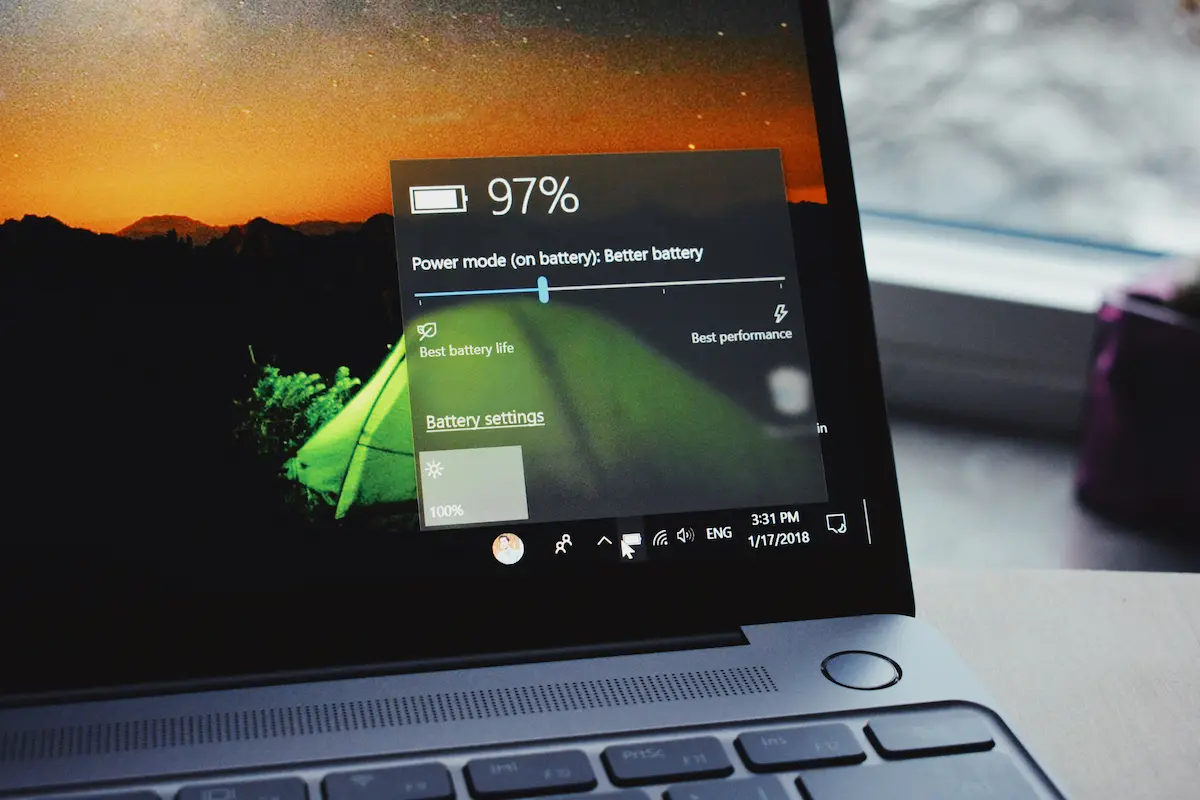
- Select a more efficient power mode (Best power efficiency).
- Lower the screen brightness.
- Reduce the screen timeout duration.
- Enable Battery Saver when the charge is low.
- Review the “Battery usage” section to find the most draining apps.
In MacBook:
Go to Apple menu > System Settings > Battery and ensure Optimized Battery Charging is enabled. Some devices support Charge Limit to set a maximum charge level (e.g., 80%).
🩺 How to Check Laptop Battery Health
1️⃣ On Windows (Battery Report)
Open Command Prompt as Administrator and type:
powercfg /batteryreport
An HTML file will be generated. Open it and look for:
- Design capacity: The original design capacity.
- Full charge capacity: The current maximum capacity (comparing it to the design capacity gives you the health percentage).
2️⃣ On MacBook
Go to:
Apple menu > System Settings > Battery > Battery Health
If you see a Service Recommended message, it means the battery needs to be inspected or replaced.
📦 How to Store Your Laptop for a Long Period
If you won’t be using the device for several weeks, follow these steps:
- Charge it to approximately 40% – 60% (do not store it completely empty or full).
- Completely shut it down (do not just use Sleep mode).
- Store it in a cool, dry place.
- Keep it away from sunlight, cars, and heat.
🚑 When Do You Need to Replace the Battery?
| Sign (Symptom) | Meaning / Action |
|---|---|
| Significant drop in runtime | The battery has lost its normal capacity. |
| Laptop shuts down before reaching 0% | Cell calibration issue or a dead cell. |
| Swollen chassis or raised trackpad | Safety hazard! Stop using it immediately. |
| “Service Recommended” message appears | The system advises inspection or replacement. |
❌ Common Mistakes That Reduce Battery Life
- Using the laptop on a bed: Blocks ventilation and raises heat.
- Draining the battery to 0% daily: Puts heavy stress on the cells.
- Buying an unknown/cheap battery: May be unsafe and damage the device.
- Constantly trying to recalibrate the battery: Lithium batteries do not need frequent full discharges.
✅ Quick Action Checklist to Preserve Your Battery
[ ] Enabled Smart Charging or Charge Limit (if available).
[ ] Avoid constantly draining the battery to 0%.
[ ] Do not use the laptop on a bed or blanket.
[ ] Monitor temperature during gaming or heavy tasks.
[ ] Use the original or a compatible charger.
[ ] Review the most power-consuming apps.
[ ] Generated a battery report to check health.
[ ] Store the device at 40%-60% if not using it for a while.
❓ FAQ
❓ Does keeping the laptop plugged in damage the battery?
It does not cause immediate damage in modern devices, but staying at 100% with high heat for long periods can accelerate aging. Use Smart Charging if available.
❓ Is charging overnight safe?
It is safe in modern devices because the system stops charging when full. Just avoid placing the device on a surface that blocks ventilation.
❓ Does Battery Saver fix the battery?
No. It only saves power for the current session; it does not restore lost capacity or stop chemical aging.
🎯 Conclusion
Maintaining your laptop battery relies on reducing heat, avoiding deep discharges, and not keeping the battery at 100% all the time. Do not overcomplicate the advice; the battery is a consumable component and will lose some capacity over time, but good habits will delay that by years.
💡 You might also like:
« “Comprehensive Laptop and Computer Terms Glossary: Over 300 Tech Terms Explained Simply” »